Where Is My Session? Find Any Claude Code Session
claude –resume only lists your current folder. wims finds every Claude Code session on your machine and resumes it in the right one.
claude --resume only lists sessions for the folder you are standing in, so a good conversation from last week is effectively lost unless you remember where you started it. I built wims, a terminal tool that lists every Claude Code session on your machine, searches them by what you actually typed, and drops your shell into the right folder with the session resumed.
I lost a session last week.
Not literally. The file was still on disk. But I could not remember which of forty-odd folders I had started it in, and that is the only way to get it back.
Table of Contents
- Why claude –resume cannot help you
- What wims does
- Install it
- Finding a session by what you said
- The cd has to happen in your shell
- What is actually inside ~/.claude
- What I got wrong
- What is next
Why claude –resume cannot help you
Claude Code scopes sessions to the directory you launched them in. Run claude --resume in ~/code/api-gateway and you get the sessions you started in ~/code/api-gateway. That is sensible: it is almost always what you want.
It stops being sensible the moment you cannot remember the folder.
I have 125 sessions on this machine across dozens of projects. Client work, side projects, one-off questions from a folder I have since deleted. Finding one means either remembering where I was, or running claude --resume in folder after folder until something looks familiar.
There is no global list. That is the entire gap.
What wims does
wims lists every session on the machine, from anywhere, newest first.
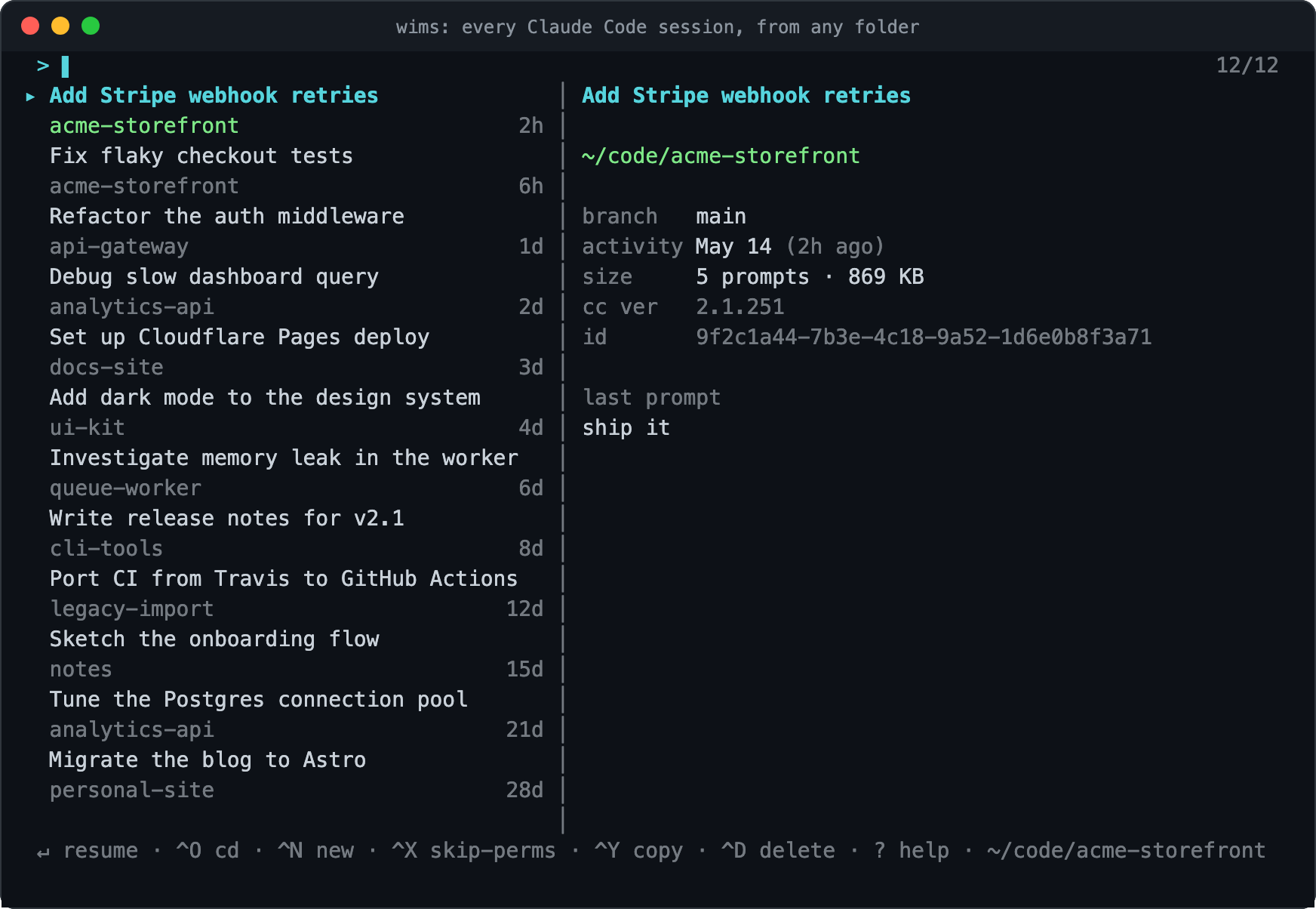
Each row is a session with a real title and the folder it lives in. The pane on the right shows the full path, the git branch, how many prompts you sent, the transcript size, and the last thing you typed, which is usually enough to recognise a conversation before you commit to opening it.
Type to filter. Press enter, and two things happen: your shell moves into that folder, and the session resumes. When you quit Claude, you are still in the project directory.
That last part is the whole point. The question was never only "which session", it was "where was I".
Install it
Requires Node 20 or newer, and the claude CLI to actually resume anything.
npm install -g @pluginslab/wimsThat gives you the wims-tui binary. To get the wims command that also moves your shell, install the shell function once:
mkdir -p ~/.config/wims
wims-tui --print-shim > ~/.config/wims/wims.sh
echo '[ -f ~/.config/wims/wims.sh ] && . ~/.config/wims/wims.sh' >> ~/.zshrc
Use ~/.bashrc for bash. For fish, write it straight into the autoload directory and skip the sourcing line:
wims-tui --print-shim fish > ~/.config/fish/functions/wims.fishOpen a new shell and run wims.
Writing the shim to a file rather than putting eval "$(wims-tui --print-shim)" in your rc is deliberate. The eval version starts Node on every shell you open.
Finding a session by what you said
Filtering on the title covers "I know roughly what it was called". The harder question is "I know I asked about this somewhere", and that needs a different index.
Prefix a query with / and wims searches the text of every prompt you have ever submitted, then maps the matches back to the sessions they came from.
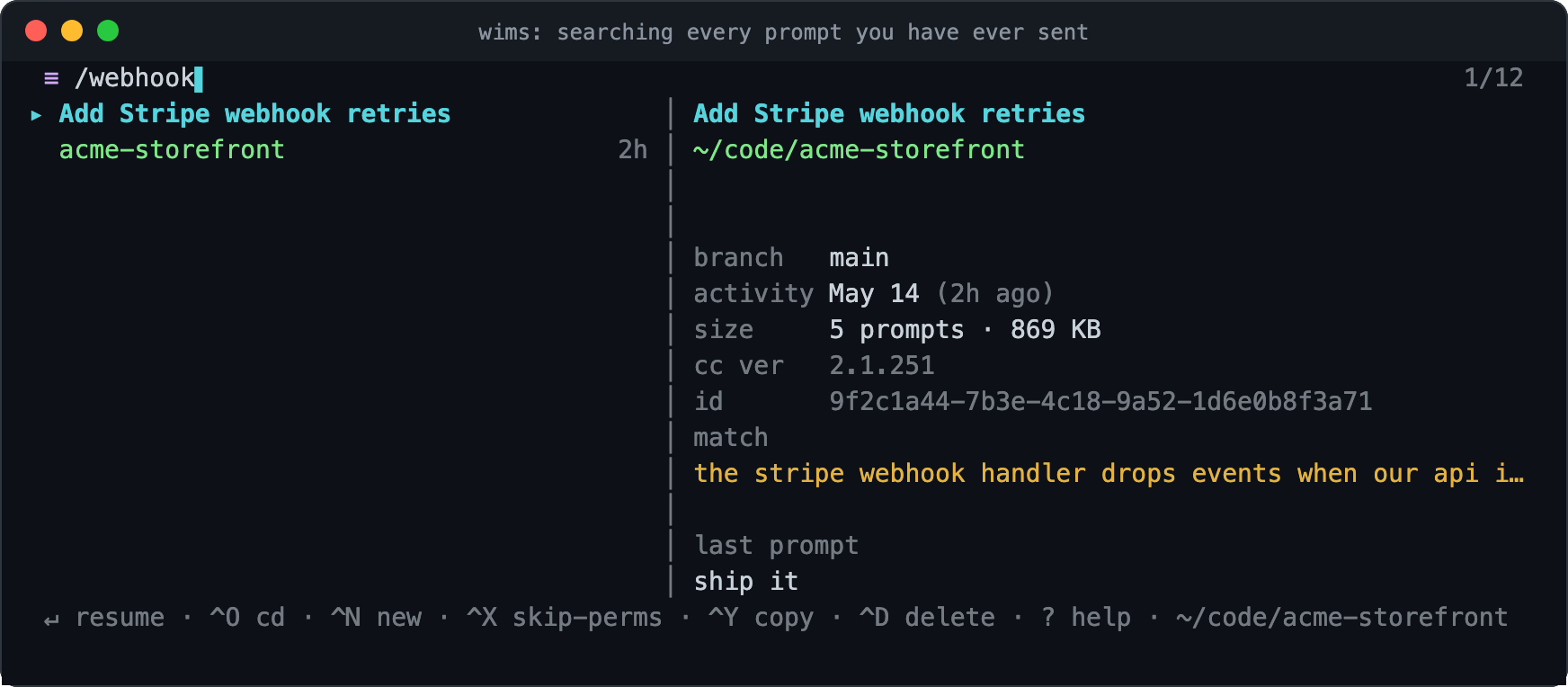
I needed this on the day I built it. I went looking for a session where I had set up DNS for a deployment. Typing dns found nothing useful, because Claude had titled the session after the deployment rather than the DNS work, and I had run it from a folder named after the project. The word never appeared in either.
Searching what I had typed found it immediately.
That is the general shape of the problem. A session gets named after what it was mostly about, which is often not the thing you go looking for six weeks later. The title is a good label and a poor index. What you typed is the index.
One honest limit: this searches your prompts, not Claude's replies. In that same session, "Cloud DNS" appears 18 times in the transcript and zero times in anything I wrote.
The cd has to happen in your shell
The one genuinely awkward requirement was moving your shell into the folder.
A child process cannot change its parent's working directory. That is not a Node limitation, it is how processes work. Every tool that appears to do it, z, zoxide, fzf's directory jumping, solves it the same way, and so does wims.
The binary draws the list and writes your choice to a temporary file. A shell function reads that file and runs the cd itself, in your shell, where it sticks:
wims() {
  local out; out="$(mktemp)"
  WIMS_ACTION_FILE="$out" command wims-tui "$@"
  IFS="$(printf '\t')" read -r action dir id extra < "$out"
  cd "$dir" || return 1
  command claude --resume "$id"
}
That is the abridged version. The real one covers bash, zsh and fish, refuses to cd into a folder that no longer exists, and passes through exactly one known flag rather than whatever happens to be in the file.
What is actually inside ~/.claude
The reason this took an afternoon rather than a week is that most of the data was already there.
Claude Code keeps one JSONL transcript per session under ~/.claude/projects/. Buried in each one is an entry like this:
{"type":"ai-title","aiTitle":"Configure secondary domain with Cloudflare"}Claude writes a short human title for every session and updates it as the conversation goes. Of my 125 sessions, 123 have one. Not "Session 4", but actual descriptions: Debug slow dashboard query, Port CI from Travis to GitHub Actions. There is a matching last-prompt entry for where you left off.
A title and your last message. That is most of a session browser, already written.
Then there is ~/.claude/history.jsonl, one line per prompt you have ever submitted, tagged with its project and session. Mine has 21,743 lines and parses in about 30 milliseconds. That is the full-text index the / search runs on, and it gives exact prompt counts without touching a transcript.
You do not need my tool to see any of this:
grep -ho '"aiTitle":"[^"]*"' ~/.claude/projects/*/*.jsonl | sort -uThat returned 117 unique titles for me, going back months.
The performance work followed from the same observation. The fields worth having sit at the two ends of each transcript, so wims reads a 64 KB window from the head and one from the tail and skips everything between. With a small metadata cache keyed on each file's size and modification time, a full scan of 125 sessions and roughly 330 MB lands at about 130 milliseconds.
What I got wrong
Three things, all caught by looking at the screen rather than by a test.
The layout lied. My tests passed while the age column rendered as 47 instead of 47d and no instead of now. The list pane was shrinking from 46 columns to 32 to make room for the preview, truncating everything to fit. No assertion I had written would have caught it.
My test harness was the bug. I spent a while convinced keyboard input was broken, driving the app through a pseudo-terminal and watching nothing happen. The characters on screen were the terminal echoing my keystrokes, not the app receiving them. A plain Node script in the same terminal read input fine, which is how I knew the app was innocent.
Fuzzy matching produced confident nonsense. A three-letter query matches almost anything if you let the letters scatter: "Configure secondary donmain … acme-storefront" is a real subsequence match for dns and complete garbage as a result. Rejecting matches that sprawl too far, while keeping acronym-style ones, cut a 68-result query down to 9 without losing anything I wanted.
What is next
Two things. A // search mode that greps the full transcripts, Claude's replies included, for exactly the "Cloud DNS" case above. And a proper look at whether the session list should group by project rather than sort by time.
wims is MIT licensed, the code is on GitHub, and it is on npm as @pluginslab/wims. It reads your Claude config directory and makes no network calls.
If you have ever closed a terminal and thought "wait, where was that", it is one command away.
Links: wims on GitHub · Claude Code docs · Ink
Tags: Claude Code, CLI, Developer Tools, Terminal